Thursday, 27 June 2013

ADO.NET Connected & Disconnected Architecture

ADO.NET Connected & Disconnected Architecture


ADO.NET is a middleware technology used to connect front end and back end of .NET applications.
ASP.NET is used to create front end of applications using a code behind language like C#.NET.
Most of the applications require database as back end to store application information.
To connect front end and back end ADO.NET  is used.

It contains two types of architectures.
1. Connected architecture.
2. Disconnected architecture.
Two namespaces required to work with ADO.NET. They are
System.Data.SqlClient
System.Data
SqlConnection class is used to create connection object containing server, database and authentication details in connection string.
SqlCommand class is used to create command object which stores sql query which can be executed.

ADO.NET Connected architecture

In ADO.NET Connected architecture connection to the database has to be in opened state to access the database.
In Connected architecture connection string is used to connect to the database.
Connection should be opened and closed.
Commands are executed using methods like
MethodCommandsReturn type
ExecuteNonQueryInsert,Update,Delete,...int
ExecuteReaderSelectSqlDataReader
ExecuteScalarAggregate commandsObject

ExecuteNonQuery method is used to execute commands and return number of rows effected.
ExecuteReader method is used to execute select command that retreives data and stores it in SqlDataReader which is capable of reading data row by row. SqlDataReader is read only and it reads in sequential order only.
Read( ) method of SqlDataReader is used to read data row by row and it returns bool value.
ExecuteScalar method is used to execute sql command that returns one value as its return type is object.
If ExecuteScalar is used to execute select query that retreives table data. It can return only first row first column cell value.

ADO.NET Disconnected architecture

In ADO.NET Disconnected architecute data is retreived from database and stored in dataset.
Data in dataset can be accessed even when the connection to the database is closed.
SqlDataAdapter is used to open the connection ,execute the command, store data in dataset and close the connection.
DataSet is capable of storing more than one table.
DataSet is used to store data on client side.

da.fill(ds);
The above line of code is used to execute the command by opening the connection to store data in dataset and closing the connection.

Example to insert values into database table on button click in ASP.NET page

First create a database name adotask.
Create a table named tbl_register with two columns username -varchar(50), emailid - varchar(50)

Open visual studio
Create empty website
Create a webpage
Add two textboxes and two buttons.
Under first button click event write ADO.NET Connected architecture code and under second button write ADO.NET disconnected architecture code to insert the values in textboxes into database table.

ado.netConnectedDisconnectedArchitecture

ASP.NET Source code

<%@ Page Language="C#" AutoEventWireup="true" CodeFile="Default2.aspx.cs" Inherits="Default2" %>

<!DOCTYPE html PUBLIC "-//W3C//DTD XHTML 1.0 Transitional//EN" "http://www.w3.org/TR/xhtml1/DTD/xhtml1-transitional.dtd">

<html xmlns="http://www.w3.org/1999/xhtml">
<head runat="server">
    <title></title>
</head>
<body>
    <form id="form1" runat="server">
    <div>
   
        username<asp:TextBox ID="TextBox1" runat="server"></asp:TextBox>
        <br />
        emailid&nbsp;&nbsp;&nbsp;
        <asp:TextBox ID="TextBox2" runat="server"></asp:TextBox>
        <br />
        <asp:Button ID="Button1" runat="server" onclick="Button1_Click"
            Text="Register" />
        <asp:Button ID="Button2" runat="server" onclick="Button2_Click"
            Text="Register 2" />
   
    </div>
    </form>
</body>
</html>

CSharp.NET Code

using System;
using System.Collections.Generic;
using System.Linq;
using System.Web;
using System.Web.UI;
using System.Web.UI.WebControls;

using System.Data.SqlClient;
using System.Data;

public partial class Default2 : System.Web.UI.Page
{
    protected void Page_Load(object sender, EventArgs e)
    {

    }
    protected void Button1_Click(object sender, EventArgs e)
    {
        //connected architecture
     
        //connection string - to which database you have to connect
        SqlConnection con = new SqlConnection("Data Source=SUDHIRCHEKURI;Initial Catalog=adotask;Integrated Security=True");
        //command - sql query to execute
        SqlCommand cmd = new SqlCommand("insert into tbl_register values('"+TextBox1.Text +"','"+TextBox2.Text+"')", con);
        //open connection
        con.Open();
        //execute command
        int i = cmd.ExecuteNonQuery(); //to execute insert command
        if (i > 0)
        {
            Response.Write("<script>alert('Successfully registered');</script>");
        }
        //close connection
        con.Close();
    }
    protected void Button2_Click(object sender, EventArgs e)
    {
        //disconnected architecture

        //connection string - to which database you have to connect
        SqlConnection con = new SqlConnection("Data Source=SUDHIRCHEKURI;Initial Catalog=adotask;Integrated Security=True");
        //command - sql query to execute
        SqlCommand cmd = new SqlCommand("insert into tbl_register values('" + TextBox1.Text + "','" + TextBox2.Text + "')", con);
        //dataset
        DataSet ds = new DataSet();
        //sqldata adapter to open connection- execute cmd - store data in dataset - close connection  
        SqlDataAdapter da=new SqlDataAdapter (cmd);
        da.Fill(ds);
        Response.Write("successfully inserted");
    }
}

ASP.NET Check existing user

ASP.NET Check existing user

CSharp code in a linkbutton click which shows wheater the user already registered or not.
Connection is opened to database server.
If user id is matched data is retreived.
If data is retreived user already exists.

CSharp.NET Code

 
protected void LinkButton1_Click(object sender, EventArgs e)
{
if (Text1.Value != “”)
{
Label1.Visible = true;
SqlConnection con = new SqlConnection(res.ConnectionString);
SqlCommand cmd = new SqlCommand(“SELECT * FROM agent WHERE userid=’” + Text1.Value + “‘”, con);
con.Open();
SqlDataReader dr = cmd.ExecuteReader();
if (dr.Read( ))
{
Label1.Text = Text1.Value + ” Not Available”;
Label1.ForeColor = System.Drawing.Color.Red;
}
else
{
Label1.Text = Text1.Value + ” Available”;
Label1.ForeColor = System.Drawing.Color.Green;
}
dr.Close();
con.Close();
}
}
- See more at: http://dbakings.com/ASP/User%20Check%20Availability.aspx#sthash.uL4jaXBc.dpuf

ASP.NET State Management

ASP.NET State Management

- See more at: http://dbakings.com/ASP/StateManagement.aspx#sthash.qyhDSZUt.dpuf

For Beginners ASP.NET Gridview Edit Update Delete

ASP.NET Gridview Edit Update Delete

http://dbakings.com/ASP/ASPGridViewEditUpdateDelete.aspx

- See more at: http://dbakings.com/ASP/ASPGridViewEditUpdateDelete.aspx#sthash.iWFGXgGC.dpuf

Useful Codes Link

Useful Codes Link

http://www.simpa.dk/Projects.aspx?CategoryId=1&IndexId=1

asp.net Ajax Rating
asp.net Both way Json array
asp.net CaptchaImage
asp.net Facebook canvas login framework 5410
asp.net Facebook Login_Post to wall framework 5410
asp.net Facebook Retrieve Friends GridView Login_Post to wall framework 5410
asp.net How to display smileys on website
This example shows how you can display smileys on website. This can be used if you have a blog or forum. The code shows that before you publish a post you can insert smiley as :-) or :-D and the code will change the written smiley to a pic smiley. You can also make your own smileys or delete or insert new smiles to the source. NOTICE: if you use Server.HtmlEncode() method this won't work. Enjoy! This example can be downloaded here
asp.net How to use fancybox with jquery
asp.net htmlpageToPdf
asp.net htmlToPdf
asp.net Lazy loading with gridview
asp.net MessageBox
asp.net Use of Gridview and Datalist with MySQL

Insert smiley images automatically in asp.net when user enter emotion text

Insert smiley images automatically in asp.net when user enter emotion text


Now let me show how you can easily do the same in asp.net with simple javascript code.
  • First of all download some smiley images and paste them in your website's root folder
  • Put a div element inside your aspx page with contentEditable property set to true and onkeyup="replacewithimg(this);"


  • In head section of your aspx page add the following javascript


Explaination:


  • txt & img are two Arrays which holds the emotion text and emotion image element source code respectively side by side


  • replacewithimg is a function which accept div as a parameter in which the client is typing. This function is called when user press and release a key. In this function I created a for loop which checks whether any emotion text is there in div or not, if it is there then the javascript's replace() function will replace it with corresponding img tag which is stored in img array and after replacing the text set div's innerHTML to var innHTML which contains the updated innerHTML.


[Note: regular.gif, tongue.gif and Sad.gif are the names of my smiley images, Please update them if you have different names]

Download Demo Website

Creating Crystal Report and Sending Via Mail in ASP.NET

Creating Crystal Report and Sending Via Mail in ASP.NET


Crystal Reports is a mechanism which is used to create a report from various datasources, it is a popular report writing technique used to generate reports from different data sources and show to data in a report format. Crystal Reports allows users to graphically design data connection(s) and a report layout. Using Database Experts user / developers link the tables from various data sources (sql server, mysql, oracle, excel, access etc). Columns from the table are placed on the design surface of the report and can also be used in formulas for generating reports of a specific criteria. While generating the report you are given the flexibility to design it as per your requirements. Enough of this theory about crystal report we'll move to our example.

We'll create a crystal report based on a user's criteria ie a user will select a particular empid and we'll display the record of that employee in a report format. 

Create a table in your sql server
create table Emp(EmpId int identity(1,1) not null,EmpName varchar(20)not null,EmpAdd varchar(20)not null,EmpCity varchar(20)not null,EmpState varchar(20)not null,EmpCountry varchar(10) default 'India')
 
insert into Emp values('vishal','Andheri','Mumbai','Maharashtra','India')insert into Emp values('Rahul','Virar','Thane','Maharashtra','India')insert into Emp values('John','Naigoan','Thane','Maharashtra','India')insert into Emp values('Pinky','Bandra','Mumbai','Maharashtra','India')insert into Emp values('Lincy','Worli','Mumbai','Maharashtra','India')

Now create a new Project in visual Studio 2005/ 2008 / 2010
  1. For creation of a report first Open visual studio and create a new website.
  2. Add a new item to the website Cyrstal report.rpt.
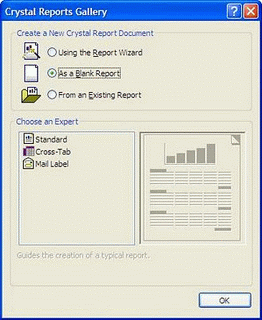
  3. Select Blank report option from the wizard window.

    cristal report in asp.net
  4. Now Click Ok.
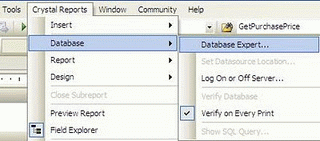
  5. You'll find that an cyrstal report is being added in your project now on the fields explorer select Database Expert or CrystalReports menu and select DataBase Expert.

    cristal report

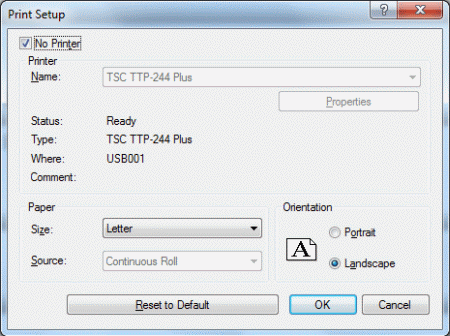
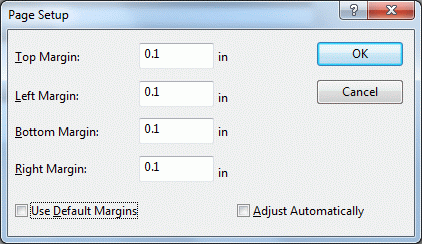
    Again right on the crystal report and select design-> page setup option, Specify the margin option which you like.

    cristalreport3.gif

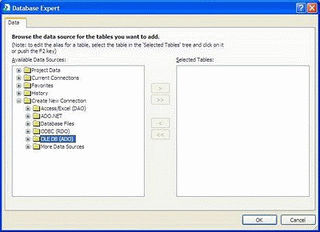
    Now select fields explorer -> Database -> Database Expert. Or the same thing can be done through Crystal Report Menu which is appearing in the menu bar.

    create cristal report
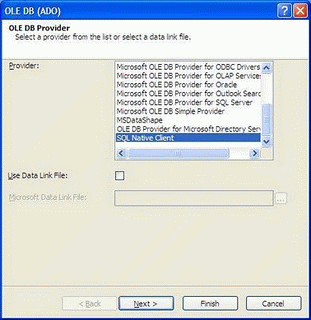
  6. Now in next window expand Create new connection section and OLEDB(ADO) and in next window Select Sql Native client.

    cristal report creation

    cristalreport6.gif
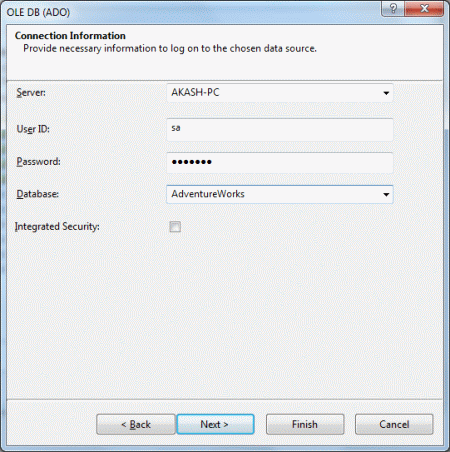
  7. Now in next window enter your server name, user id, password to connect and the database to connect.

    cristalreport7.gif
  8. Click Next and Finish.
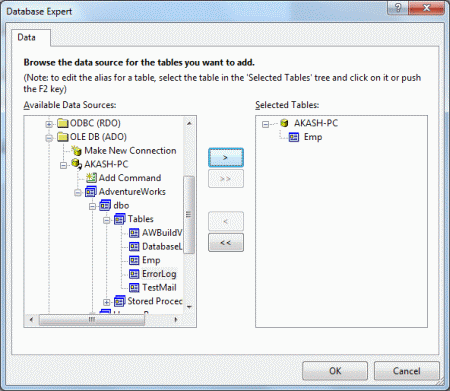
  9. Now in next window select the tables whose data you want to display.

    send cristal report via mail
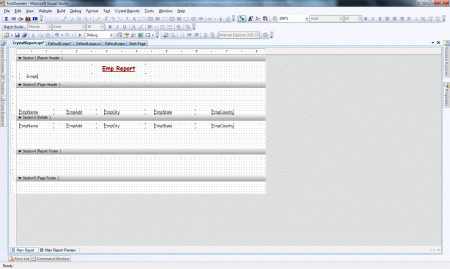
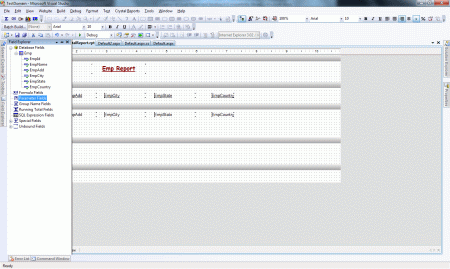
  10. Click ok. Now if you look at fields explorer in the database expert you'll find all the columns of the emp table is displayed. Now Start Desiging your report.

    send cristal report via mail in asp.net
  11. If you want that your report columns should expand as and when the need grows then do the following things:
     
    • Determine the columns whose data can grow for example in this I'm taking name.
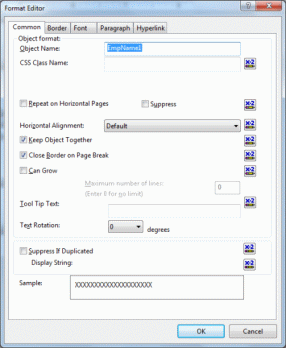
    • Right click on that columns in the details view and click on Format Object.

      cristalreport10.gif
    • Select the Can Grow checkbox and click ok.
       
  12. Now we'll create a parameter fields for the crystal report ie when user will select an Id from the Drop Downlist on the web page and clicks on the submit button the records of that employee should be displayed in the crystal report. This can be done through parameterized variables or parameterized fields.

    cristal report send via mail
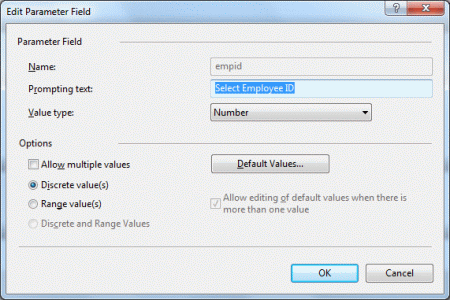
  13. Right click on the parameter fields click on new the following dialog box will appear fill in the proper details.

    cristalreport12.gif
  14. We'll be passing values for this variable from the front end. You'll find that the empid parameterized variable is added in the parameter fields.
  15. Now click on Special Fields in Field Explorer and select Record Selection Formula and insert it into the pageFooter section of our crystal report webpage.
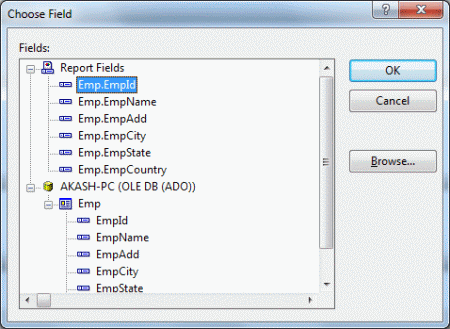
  16. Right click on it and click on Select Expert select Emp.EmpId from Report Fields.

    cristalreport13.gif
  17. Click on ok. 
  18. Select is equal to and {?empid} from the dropdowns and click on OK.
  19. Now the designing part of the crystal report is done. Now we'll move to the coding part of the WebPage.
  20. Create a table Control with a drop downlist and also add a crytalreportviewer control from the Reporting Section.
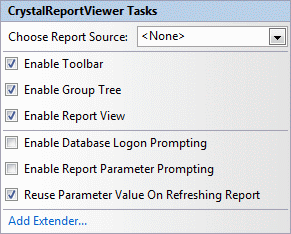
  21. Uncheck the checkboxes of the crystalreportviewer by clicking the smart tag of it.

    cristalreport14.gif
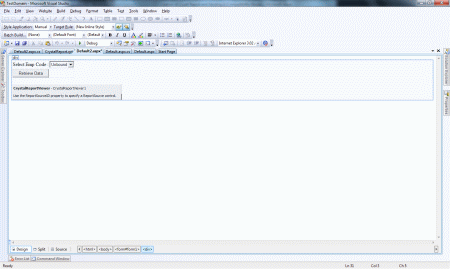
  22. Design you web page like the following.

    cristalreport15.gif
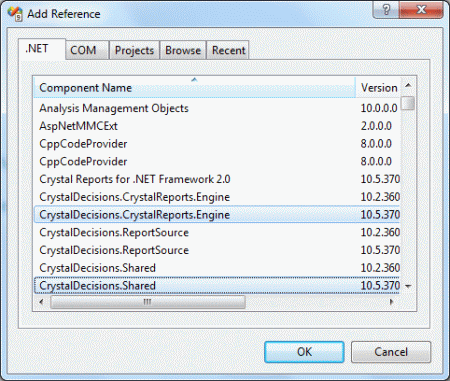
  23. For working with crystal report we'll have to include serveral references such as:

    cristalreport16.gif
Following is the Source code for the same:<%@ Page Language="C#" AutoEventWireup="true" CodeFile="Default2.aspx.cs" Inherits="Default2" %> <%@ Register Assembly="CrystalDecisions.Web, Version=10.5.3700.0, Culture=neutral, PublicKeyToken=692fbea5521e1304"    Namespace="CrystalDecisions.Web" TagPrefix="CR" %><!DOCTYPE html PUBLIC "-//W3C//DTD XHTML 1.0 Transitional//EN" "http://www.w3.org/TR/xhtml1/DTD/xhtml1-transitional.dtd"><html xmlns="http://www.w3.org/1999/xhtml"><head id="Head1" runat="server">    <title></title></head>
<
body>    <form id="form1" runat="server">    <div>        <table>            <tr>                <td>                    Select Emp Code :
                </td
>                <td>                    <asp:DropDownList ID="ddEmpcode" runat="server">                    </asp:DropDownList>                </td>            </tr>            <tr>                <td colspan="2">                    <asp:Button ID="btnSubmit" runat="server" Text="Retrieve Data" OnClick="btnSubmit_Click" />                </td>            </tr>
        </table>        <br />        <CR:CrystalReportViewer ID="CrystalReportViewer1" runat="server" AutoDataBind="true"            EnableDatabaseLogonPrompt="False" EnableParameterPrompt="False"ReuseParameterValuesOnRefresh="True" />    </div>    </form></body>
</
html>

Following is the Code Behind for the Same
using System;using System.Collections.Generic;using System.Linq;using System.Web;using System.Web.UI;using System.Web.UI.WebControls;using CrystalDecisions.CrystalReports.Engine;using CrystalDecisions.Shared;using System.Data.SqlClient;using System.Data;using System.Configuration;using System.Net;using System.Net.Mail; public partial class Default2 : System.Web.UI.Page{    #region variable Declaration    string dbcon = ConfigurationManager.ConnectionStrings["AdvWorks"].ConnectionString;
    SqlConnection con;
    SqlCommand cmd;
    SqlDataAdapter da;
    DataSet ds;
    string pdfFile = "D:\\Testcrystal.pdf";
    #endregion    protected void Page_Load(object sender, EventArgs e)
    {
        if (!IsPostBack)
        {
            FillDropDown();
        }
    }
    public void FillDropDown()
    {
        con = new SqlConnection(dbcon);
        da = new SqlDataAdapter("select * from Emp", con);
        ds = new DataSet();
        da.Fill(ds);
        for (int i = 0; i < ds.Tables[0].Rows.Count; i++)
        {
            ddEmpcode.Items.Add(ds.Tables[0].Rows[i][0].ToString());
        }
    }
    protected void btnSubmit_Click(object sender, EventArgs e)
    {
        ReportDocument crystalReport = new ReportDocument();
        try        {
            crystalReport.Load(Server.MapPath("~/CrystalReport.rpt"));
            crystalReport.SetDatabaseLogon("username of Sql", "password of sql", "server name","Database name");
            crystalReport.SetParameterValue("empid", ddEmpcode.Text);
            CrystalReportViewer1.ReportSource = crystalReport;
            crystalReport.ExportToDisk(ExportFormatType.PortableDocFormat, pdfFile);
            sendMail();
        }
        catch (Exception e1)
        {
            string script = "<script>alert('"+e1.Message+"')</script>";
            ClientScript.RegisterStartupScript(this.GetType(), "mailSent", script);
        }
    }
    private void sendMail()
    {
        MailMessage msg = new MailMessage();
        try        {
            msg.From = new MailAddress("email id from which the mail has to sent");
            msg.To.Add("email id which will receive the mail");
            msg.Body = "Employee Record";
            msg.Attachments.Add(new Attachment(pdfFile));
            msg.IsBodyHtml = true;
            msg.Subject = "Emp Data Report uptil " +DateTime.Now.ToString() + " date";
            SmtpClient smt = new SmtpClient("smtp.gmail.com");
            smt.Port = 587;
            smt.Credentials = new NetworkCredential("gmail email id", "gmail password");
            smt.EnableSsl = true;
            smt.Send(msg);
            string script = "<script>alert('Mail Sent Successfully')</script>";
            ClientScript.RegisterStartupScript(this.GetType(), "mailSent", script);
        }
        catch (Exception ex)
        {
        }
        finally        {
            /*
                so that the error "The process cannot access the file because it is being used by another process" should not occur when we immediately
                try to send another mail after one has been sent.
                w3wp.exe:5800 CREATE D:\\Testcrystal.pdf
                w3wp.exe:5800 WRITE D:\\Testcrystal.pdf
                w3wp.exe:5800 CLOSE D:\\Testcrystal.pdf
                w3wp.exe:5800 OPEN D:\\Testcrystal.pdf
                w3wp.exe:5800 READ D:\\Testcrystal.pdf
                As you can see, it created the PDF, it wrote the PDF, it closed the PDF (expected). 
                Then, there was an unexpected Open, Read, without close immediately after the file was created. So that's why we've to close the file after
sending
             * it through mail because msg will open and read the file but the file is not close automattically after sending it. There will no error while sending
the first
             * mail but when you try to send the next mail one after the other the above error will rise. to avoid this error we are using the Dispose methods
to release 
             * all the resources which are being used.
            */
            msg.Dispose();
        }
    }
}